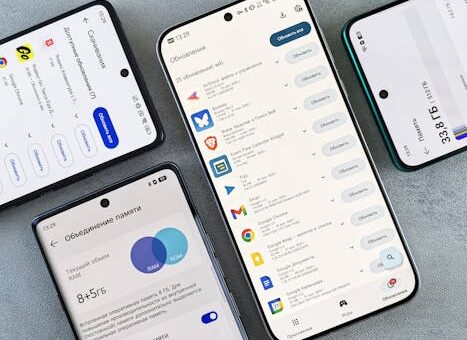
Many people search for better productivity methods, and apps to organize your day have become a top solution for both work and personal life efficiency.
It is common to start with enthusiasm, downloading several apps, only to end up using none consistently as daily tasks pile up and notifications distract focus.
Some believe more organizational tools should make days easier, but improper setup or app overload can actually add confusion and defeat the intended purpose.
This article promises practical steps to truly benefit from apps to organize your day: you will gain strategies, mini scripts, and checklists for smart implementation.
Why Users Stick With Their Favorite Organizer Apps
App users achieve a sense of control and clarity, enabling a stronger daily routine with fewer surprises and missed deadlines. The right routine maintains itself with less effort.
Frequent engagement with apps to organize your day creates positive habits. It transforms planning from a chore into a rewarding, almost automatic, daily step.
What Keeps People Coming Back
Simplicity is the surprising cornerstone. Most productive users have just one or two reliable apps, rather than a sprawling dashboard with every feature imaginable or overlapping reminders.
A common failure: adding every app that seems useful, only to lose interest or feel overwhelmed within a few weeks. This leads to abandoning digital organization entirely.
If everything feels scattered, one recovery script is: “Today I uninstall all but my main planner and set a five-minute daily check-in at noon.” This alone will rebuild momentum.
Another insight: real loyalty comes when the app helps make decisions, not just record them. Smart apps nudge you toward taking action, not merely cataloging tasks.
Choosing the Right Tools for Personal Use
Many start with a crowded home screen full of promising tools, yet most revert to using built-in apps or just their preferred calendar after a short period.
The ideal approach: Start with one task manager and one calendar. Sync them, and ignore extra plugins or integrations until a working routine is truly established.
Most people chase the perfect app, constantly switching. What works: Find a simple, reliable tool and commit to using it for a full month before making changes.
Final advice: Every added app or feature should solve a real friction you have, never just a hypothetical scenario. Stick to essentials for lasting success.
Getting Started Without Common Mistakes
Choosing a single primary app gives an immediate sense of control. It allows you to master workflows rather than juggle fragmented attempts across multiple platforms.
After establishing this foundation, your daily planning becomes smoother. Energy wasted troubleshooting multiple apps can now fuel real progress on tasks instead of app maintenance.
Building Your System: Step-By-Step
Download and install your app. Allow only essential notifications at first – calendar events, daily reminders, or critical work deadlines. Don’t accept promotional alerts or social push notifications.
On your initial setup, invest ten focused minutes. Add tomorrow’s three key tasks and any fixed appointments. Resist the urge to fill every empty slot or color-code immediately.
During your first work session, open only this app on your screen or device. Give yourself 20 minutes to explore its basic functions—scheduling, reminders, and recurring task creation.
Stop doing this: Don’t add every recurring chore or minor checklist right away. Too much information immediately leads to notification overload, which will likely cause you to mute or ignore the app.
- On your first day, set your primary working hours and block time for breaks. This keeps your planning realistic and prevents overcommitting in the future.
- Customize your app’s morning reminder to prompt a review. Use clear language: “What are today’s top three priorities?” Avoid vague daily check-ins that become background noise.
- Add a message in your digital calendar that notifies only you when a new task appears. This helps reinforce a closed-loop system and reduces daily backlog anxiety.
- Check settings to ensure only your devices receive alerts. Avoid accidental cross-device notification threads, which can disrupt focus and cause scheduling confusion.
- Sync your planner daily at a chosen hour (such as 12 pm). Consistency with your own daily messaging creates positive habit reinforcement and prevents slip-ups over time.
If a day is missed, do not panic—just resume your daily check-in the next day. If multiple days are missed, reset by deleting outdated tasks and refocusing on your next most important project.
Effective Replies and Staying Safe in Productivity Apps
Getting clear replies to your reminders and keeping information private ensures ongoing motivation. A structured approach makes app use efficient without risking security or clutter.
Successful organization depends on setting boundaries for alerts and who can view or edit shared calendars. Respect personal privacy while collaborating with trusted contacts only.
Building a Profile That Gets Genuine Engagement
Do: Write simple, direct activity descriptions. Example: “Weekly client check-in every Friday at 2 pm.” Don’t: Use generic, vague task labels like “work stuff.”
Add two-thread openers for meetings or tasks. For example: “Let’s review marketing results, or brainstorm campaign ideas.” This doubles engagement options and prevents single-track conversation stalls.
Use a clear photo or identifiable avatar only if security settings allow. Counterintuitive tip: Over-decorated bios distract. Authentic, concise details foster more replies and useful collaboration.
Keep sharing permissions tight. Only share calendars or boards when necessary, and immediately remove access after projects end. This keeps your schedule private and avoids unwanted editing.
Safety Resources and Smart Boundaries
Always check privacy settings before adding collaborators. Set viewing rights to “read-only” if you don’t want others to edit. Disable location sharing unless essential for workflow.
If you get unwanted reminders or odd edits, locate the reporting or blocking function inside your app’s help menu. Most platforms allow for reversing any permission quickly if needed.
Revisit permissions quarterly. Regular audits catch any stray invitees or settings you no longer remember granting. This keeps both your data and workflows secure and up to date.
Use a boundary message like: “I prefer to keep work and personal tasks separate, so let’s communicate here for work projects only.” Copy and paste this to clarify expectations with collaborators.
| App | Main Benefit | Perfect For | Price Range |
|---|---|---|---|
| Todoist | Task visibility and recurring reminders | Busy professionals and students | Free – $4/month |
| Google Calendar | Seamless scheduling across devices | Team scheduling and personal events | Free |
| Trello | Visual project boards | Project managers and creative teams | Free – $10/month |
| Notion | All-in-one workspace customization | Multi-project individuals | Free – $8/month |
- Pick one main app for time blocking, plus a secondary for task notes. This division limits overcrowding while still supporting necessary project context when you need it.
- Set consistent daily review times in your primary app. Morning or midday works best for catching urgent changes and adjusts your plan before it gets too late to fix errors.
- Sync your digital planner with a cloud calendar, but only after confirming backup settings. This prevents accidental data loss and ends unintentional missed deadline surprises.
- Limit shared boards or lists to only critical teams or family. Share only what each person truly needs access to. More open access means more surface area for distractions.
- Establish a strict notification triage system: allow only actionable alerts. Dismiss passive pop-ups or promotional nudges right away, so your attention flows to real priorities.
Conclusion
To truly benefit, pick just one or two apps to organize your day, customize their settings, set daily rechecks, and keep sharing limited to essential contacts.
This sequence works because it blends habit building, clarity, and strong privacy. Less distraction and fatigue means more meaningful hours and fewer missed details.
A subtle pitfall: Overloading your planner with every possible task or notification. To avoid this, prune tasks weekly and mute non-essential prompts.
Try this action: “Install one scheduling app, set a daily alert at noon, and only share your calendar with those who need it, starting today.”